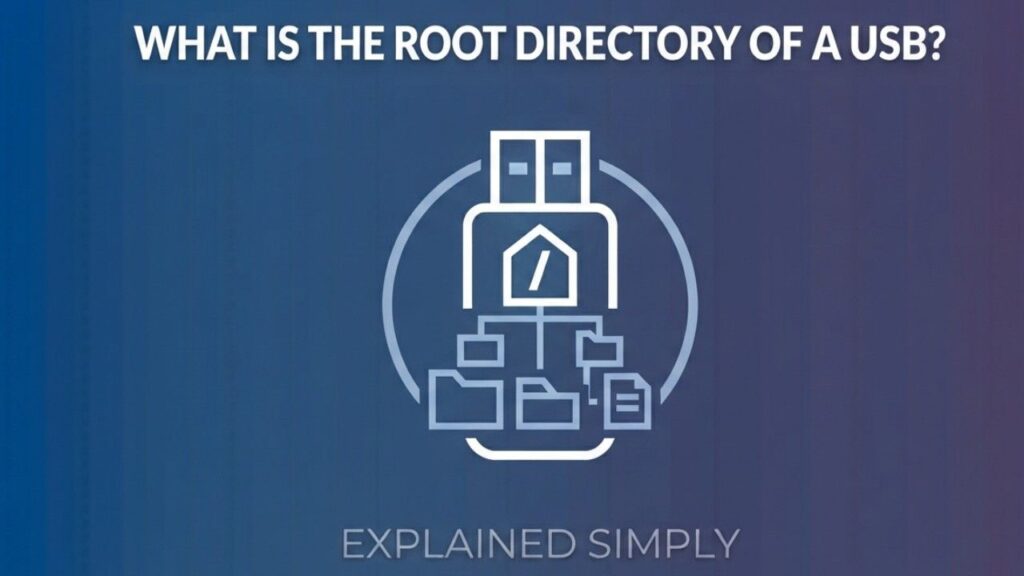
What is the Root Directory of a USB – The root directory of a USB is the top-level folder on the USB drive where all other files and folders are stored. It is the main directory you see immediately after opening the USB drive in File Explorer (Windows), Finder (Mac), or any file manager.
Understanding the Root Directory
Every storage device — including USB flash drives, hard drives, and SD cards — uses a file system with a hierarchical structure. The root directory (often shown as / on Linux/Mac or as the drive letter like E:\ on Windows) serves as the starting point. Nothing sits above it.
When you plug in a USB drive:
- The root directory contains all top-level files and folders.
- Any new file or folder you create directly on the USB (without creating subfolders) goes into the root.
How to Access the Root Directory of a USB
On Windows:
- Insert the USB drive.
- Open File Explorer.
- Click the USB drive (e.g., Removable Disk (E:)).
- You are now in the root directory.
On macOS:
- Insert the USB.
- Open Finder.
- Click the USB name in the sidebar.
- The main window shows the root directory.
On Linux:
- Insert the USB.
- Open Files or use terminal: cd /media/yourusername/USB-NAME or ls /mnt/.
- Also Read-What is Clustering in Writing
Why It Matters
- Many programs and devices (printers, smart TVs, car audio systems) expect files to be placed directly in the root directory for proper recognition.
- Keeping the root clean (avoiding too many files) improves performance and organization.
- Some bootable USBs or firmware updates require specific files in the root.
Common Issues
- “File not found” errors: Often solved by moving files to the root directory.
- Hidden files: System files like .Trashes (Mac) or System Volume Information (Windows) may appear in the root.
- Write protection: Sometimes prevents adding files to the root.
The root directory concept is the same for any drive, but USB drives make it especially visible because they are portable and frequently reformatted.
FAQs : What is the Root Directory of a USB
Is the root directory the same as the USB drive itself?
Yes. When you open the USB, you start at the root directory.
How do I find the root directory path?
On Windows it is the drive letter (e.g., F:\). On Mac/Linux it is usually /Volumes/USBName/ or similar.
Can I delete everything in the root directory?
Yes, but be careful. Deleting everything formats the visible content. System folders may reappear.
Does formatting a USB remove the root directory?
No. Formatting creates a new, empty root directory.