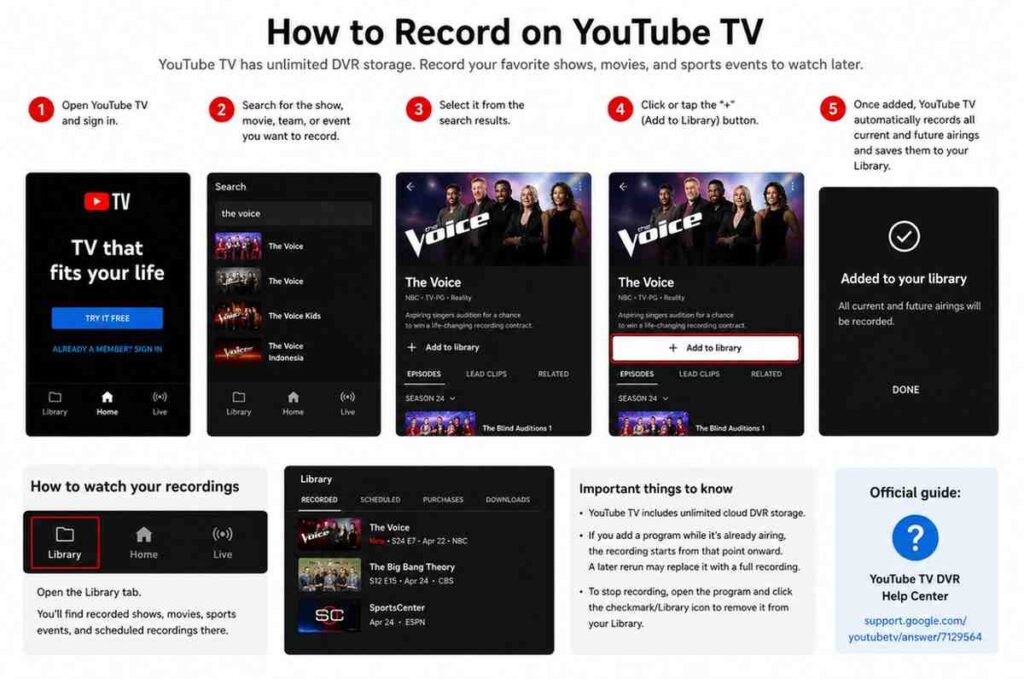
How to Record on YouTube TV – YouTube TV includes an unlimited cloud DVR with every subscription — no extra hardware needed. You can schedule recordings from any device, and they’re stored for up to 9 months.
Record a show or movie | How to Record on YouTube TV
On your TV (smart TV, Roku, Fire TV, Apple TV)
1Open the YouTube TV app and find the show, movie, or sports event you want to record.
2Select the title to open its detail page.
3Press the + Add to Library button. This instantly adds it to your DVR.
For live content, adding it records from the current moment. For upcoming content, it schedules the recording automatically.
On the YouTube TV mobile app (iOS & Android)
1Tap the Search icon or browse the guide to find your show.
2Tap the show title to open its page.
3Tap + Add to Library. A checkmark confirms the recording is set.
On the web (tv.youtube.com)
1Go to tv.youtube.com and search for your show or browse the Live Guide.
2Click the show’s title or thumbnail to open its detail page.
3Click + Add to Library to schedule the recording.
Record an entire series
When you tap + Add to Library on any episode of a series, YouTube TV automatically records all future episodes — including new seasons. You don’t have to set it up again. A checkmark icon on the show means it’s already in your library.
Recording options for series
On the show’s library page, you can filter recordings to save all episodes or new episodes only, and choose whether to record on any channel or a specific one. Tap the three-dot menu next to the show in your Library to access these settings.
Watch your recordings
1Go to the Library tab (bottom nav on mobile, top nav on TV/web).
2Select the show or movie you want to watch.
3Choose an episode and press play. You can fast-forward through ads on recorded content.
Storage & limits
YouTube TV offers unlimited cloud DVR storage — there’s no cap on how many shows you record. Recordings are kept for 9 months from the air date, after which they expire automatically.
Important to know
Some live sports events and certain network content may not be available to record due to broadcast rights restrictions. In those cases, the + Add to Library button may not appear, or the recording may be unavailable for playback.
Cancel or remove a recording
Go to your Library, find the show, and tap the checkmark icon (or three-dot menu) → select Remove from Library. This cancels future recordings for that series and removes saved episodes.